Quick Start
Before calling a model, you need to complete the following steps:
- Register and log in to your Jalapeno Cloud account
- Select a model and view the API call examples
- Create an API Key
- Base URL:https://api.jalapeno-cloud.ai/v1
- Choose one of three API formats:
- OpenAI Chat Completions (
/chat/completions) Recommended - Anthropic Messages (
/messages) - OpenAI Responses (
/responses)
- OpenAI Chat Completions (
- Call the Model API, go to the official website to copy the model name. Or copy and paste in the form below
- Go to Usage, View Model Usage Statistics
Jalapeno Cloud Model Library
Categorized by input/output modalities. Source: Jalapeno Cloud Model Library Last updated: 2026-09-15
Text Generation (Text → Text)

| No. | Model Name |
|---|---|
| 1 | GLM-5.3 |
| 2 | DeepSeek-V4-Flash-0731 |
| 3 | Hy4 |
| 4 | GLM-5.2 |
| 5 | GLM-5.1 |
| 6 | DeepSeek-V4-Pro |
| 7 | DeepSeek-V4-Flash |
| 8 | Qwen3-Next-80B-A3B-Instruct |
| 9 | Qwen3-Next-80B-A3B-Thinking |
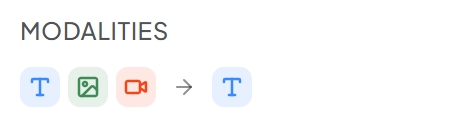
Image & Video Understanding (Image / Video / Text → Text)
| No. | Model Name |
|---|---|
| 1 | GLM-5.3-Flash |
| 2 | Kimi-K3 |
| 3 | MiniMax-M3 |
| 4 | Kimi-K2.7-Code |
| 5 | Kimi-K2.5 |
| 6 | Qwen3.5-397B-A17B |
| 7 | Qwen3.5-122B-A10B |
| 8 | Qwen3.5-27B |
| 9 | Qwen3.5-35B-A3B |
| 10 | Qwen3-VL-235B-A22B-Instruct |
| 11 | Qwen3-VL-235B-A22B-Thinking |
Total: 20 models — 9 text-only, 11 multimodal-understanding
1. Register and Log In
Visit the Jalapeno Cloud official website and click "Login" in the top right corner. Follow the prompts to log in using your credentials or verification code. After successful login, you will be redirected to the Model Marketplace.
Figure 1: Model Marketplace after login
2. Select a Model and View Examples
In the Model Marketplace, browse the available models. Each model card typically displays the model name, pricing information, and core capabilities. Click on a model card to view detailed information including model description, capabilities, pricing, and API call examples.
- Model Name: Required in the
modelfield when making API calls (e.g.,DeepSeek-V4-Pro) - Model Capabilities: Check if the model supports text, images, tool calling, deep thinking, etc.
- Pricing: Billed based on input tokens, cached tokens, output tokens, etc.
3. Create API Key
From the top navigation bar, click API KEY to access the API Key management interface. If you don't have any API Keys yet, the list will be empty. Click the Create API KEY button in the top right corner to generate a new key.
In the "Create API KEY" dialog, enter a Name (e.g., "My API Key"). The name is only used to differentiate between keys. Click OK to generate the API Key. After generation, you'll see the name, key ID, creation time, etc. Copy the key value for API calls.
If you already have an API Key, you can skip this step and select the existing key directly in the model details page for testing.
4. Base URL
All API requests should be sent to the following base URL:
https://api.jalapeno-cloud.ai/v1
Use this base URL as the base_url in your SDK configuration or as the request endpoint prefix.
5. Choose an API Format
Jalapeno Cloud supports three API formats. Choose the format that best fits your application.
- OpenAI Chat Completions (
/chat/completions) — Recommended — Compatible with the OpenAI Chat Completions format. - Anthropic Messages (
/messages) — Compatible with the Anthropic Messages format. - OpenAI Responses (
/responses) — Compatible with the OpenAI Responses format.
6. Call the Model API
Select the API Key you just created from the model details page's dropdown menu.
Copy the curl example provided at the bottom of the page, which looks like:
curl --request POST \
  --url https://api.jalapeno-cloud.ai/v1/chat/completions \
  --header 'Authorization: Bearer ${API_KEY}' \
  --header 'Content-Type: application/json' \
  --data '{
    "model": "${MODEL_NAME}",
    "messages": [
      {
        "role": "user",
        "content": "Please give a travel plan"
      }
    ],
    "stream": true,
    "max_tokens": 512,
    "stream_options": {
      "include_usage": true
    },
    "chat_template_kwargs": {
      "thinking": true
    },
    "tools": [
      {
        "type": "function",
        "function": {
          "name": "web_search",
          "description": "Web search tool",
          "parameters": {
            "type": "object",
            "properties": {
              "query": {
                "type": "string",
                "description": "Sub-task query for text retrieval"
              },
              "timeliness": {
                "type": "integer",
                "description": "Timeline parameter setting"
              }
            }
          }
        }
      }
    ]
  }'
Send the request to get the model's response.
For programmatic integration, check the examples in Python, JavaScript, Golang, etc.
7. View Model Usage Statistics
Visit the Usage Statistics page to view usage and performance data for different models.